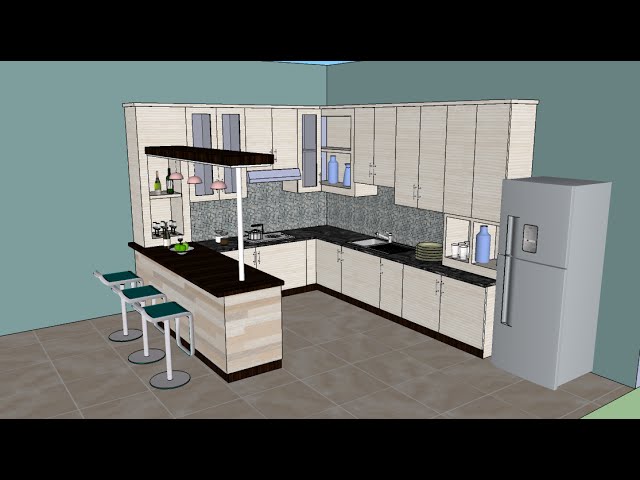
Imagine transforming your kitchen into a dream space with just a few clicks. Sounds exciting, right?
If you’re looking to redesign your kitchen, SketchUp could be your new best friend. This powerful yet user-friendly software lets you visualize and plan every detail of your kitchen design before making any costly decisions. You don’t need to be a professional designer to create stunning layouts and practical solutions; SketchUp makes it accessible for everyone.
You’ll discover how to use SketchUp effectively for your kitchen design. From setting up your virtual workspace to adding the finishing touches, we’ll guide you through each step. By the end of this guide, you’ll have the confidence to bring your kitchen ideas to life and ensure every element fits perfectly. So, are you ready to unlock the potential of your kitchen design? Let’s dive in!
Setting Up Sketchup
Explore the basics of using SketchUp for kitchen design. Create stunning layouts by adjusting dimensions and adding fixtures. Experiment with colors and textures to visualize your dream kitchen.
Designing a kitchen can be an exciting yet challenging task, and SketchUp is a powerful tool that can help you visualize your ideas with precision. Before you dive into creating your dream kitchen, you need to set up SketchUp properly. This step is crucial to ensure a smooth and efficient design process. Let’s explore how you can get started with SketchUp by setting it up correctly.Downloading The Software
Begin by downloading SketchUp from the official website. There are several versions available, including a free option and more advanced paid versions. Choose the one that best suits your needs and budget. The download process is straightforward and user-friendly. Ensure your computer meets the system requirements before downloading. This step will prevent any performance issues later. Once downloaded, you can launch the installer and follow the prompts to complete the installation.Installing Essential Plugins
Plugins can significantly enhance your SketchUp experience by adding extra functionalities. Think of them as mini-tools to expand what you can do within the software. Some popular plugins for kitchen design include ones for creating cabinets, countertops, and lighting. To install plugins, navigate to the Extension Warehouse within SketchUp. Here, you can search for and install plugins with just a few clicks. Don’t overwhelm yourself by installing too many at once. Start with a few essentials and add more as you become comfortable.Configuring Preferences
Personalizing your SketchUp settings can make your design process more efficient. Begin by configuring your default units, which can be set to inches, millimeters, or any unit that aligns with your design needs. This will help you maintain consistency throughout your project. Adjust the workspace layout to suit your style. Do you prefer a minimalist view or a detailed toolbar? Customizing these settings can enhance your workflow. Also, consider setting up shortcuts for frequently used tools to save time. Setting up SketchUp might seem like a small step, but it lays the foundation for a smoother design experience. Have you ever felt frustrated by software that doesn’t work the way you want it to? Proper setup can prevent those headaches and let you focus on what truly matters: creating a kitchen design that you’ll love.Credit: embed-3dwarehouse-classic.sketchup.com
Understanding Kitchen Layouts
Sketchup simplifies kitchen design by offering user-friendly tools to create detailed layouts. Visualize cabinet placement and optimize space efficiently. Experiment with various configurations to find the perfect fit for your needs.
Understanding kitchen layouts is vital for effective kitchen design using SketchUp. A well-planned layout ensures a functional, efficient space. It balances aesthetics and practicality. By understanding common kitchen layouts, you can create a space that works for you. Consider space and functionality to optimize your design. Then, create a detailed floor plan.Exploring Common Layouts
Common kitchen layouts include L-shaped, U-shaped, galley, and island. The L-shaped layout suits small to medium spaces. It provides flexibility and efficiency. The U-shaped layout works well for larger kitchens. It offers plenty of counter space. Galley kitchens are ideal for narrow spaces. They have parallel counters for easy access. An island layout adds extra workspace. It suits open floor plans best. Choose a layout that fits your space and lifestyle.Assessing Space And Functionality
Space and functionality are key in kitchen design. Measure your kitchen area accurately. Consider the work triangle: stove, sink, and refrigerator. This improves kitchen efficiency. Assess storage needs for utensils, pots, and pans. Plan for enough counter space for prep work. Think about the flow of movement in the kitchen. Ensure paths are clear and wide enough. Functionality is crucial for a user-friendly kitchen.Creating A Floor Plan
Start with a basic sketch of your kitchen. Use SketchUp to create a digital floor plan. Input accurate measurements and dimensions. Drag and drop elements like cabinets, appliances, and fixtures. Adjust their positions for optimal flow. Include windows and doors in the design. Visualize your kitchen layout in 3D. Make changes easily before finalizing. A detailed floor plan helps avoid costly mistakes.Creating 3d Models
SketchUp offers a user-friendly way to create detailed kitchen designs. Start by selecting cabinets, appliances, and countertops from the extensive library. Adjust dimensions and colors to fit your space, bringing your kitchen vision to life.
Creating 3D models in SketchUp is a powerful way to visualize kitchen designs. This software helps you bring your ideas to life by allowing you to design, modify, and view your kitchen in a virtual space. You can see how different elements fit together before making any physical changes. This saves time and ensures your kitchen layout is both functional and aesthetically pleasing. Let’s explore how to create these models step by step.Drawing Walls And Floors
Start with the basic structure. Use SketchUp’s tools to draw walls and floors. Select the rectangle tool to outline your kitchen space. Adjust dimensions to match your actual kitchen size. Keep walls and floors accurate for better model representation. SketchUp lets you adjust thickness and height easily. This ensures your model matches real-world measurements.Adding Windows And Doors
Incorporate openings like windows and doors next. Use the “Components” tool to add them. Pick from SketchUp’s extensive library for different styles. Drag and drop the components onto your model. Position them to match your kitchen’s current layout. Ensure the placement allows natural light and easy access. This step enhances both functionality and design.Building Kitchen Cabinets
Designing cabinets is crucial for storage and style. Use the rectangle tool to outline cabinet shapes. Extrude these shapes to add depth. Choose materials and colors that suit your taste. SketchUp lets you modify dimensions as needed. Ensure cabinets fit well in your kitchen space. This step helps visualize your storage solutions.Incorporating Appliances
Designing a kitchen in SketchUp can be both rewarding and challenging, especially when it comes to adding appliances. These are the heartbeat of your kitchen, and their placement can greatly affect both the functionality and aesthetics of the space. Understanding how to select, position, and even customize these features can make your kitchen design stand out. Let’s dive into each aspect to ensure your design is both practical and visually appealing.
Selecting Appliances
Choosing the right appliances is crucial for your kitchen design. Consider the size and style that best fit your kitchen layout. Are you going for a sleek, modern look, or do you prefer a more traditional feel? You might have a favorite appliance brand or a unique color palette in mind. Make sure these choices align with your overall kitchen theme.
Always keep in mind the dimensions of each appliance. SketchUp allows you to input precise measurements, so you can visualize how each appliance will fit in your space. This helps you avoid any surprises when you’re ready to install the real thing. A friend of mine learned this the hard way when his dream fridge didn’t quite slide into the kitchen nook as planned!
Positioning For Efficiency
Proper positioning of kitchen appliances can make or break your workflow. Think about the kitchen triangle, which includes the sink, stove, and refrigerator. Efficient placement of these elements can minimize movement and make cooking a breeze.
Consider how you move around your kitchen daily. Do you often find yourself stepping over to the fridge while cooking? Position appliances to reduce unnecessary trips. SketchUp’s measurement tools allow you to simulate these movements and optimize your layout for ease of use.
Engage with your design by imagining cooking a meal from start to finish. Does everything feel within reach, or is there an awkward stretch? Make adjustments until it feels just right.
Modeling Custom Features
SketchUp is a powerful tool for creating custom features for your appliances. Perhaps you want a custom hood vent or a built-in coffee maker that sits snugly into your cabinetry. These unique touches can elevate your kitchen design.
Use SketchUp’s modeling tools to create these custom features. You can adjust dimensions, styles, and finishes to match your vision. This level of customization is what turns a good kitchen design into a great one.
Don’t shy away from experimenting with different ideas. Sometimes an unexpected feature can become the centerpiece of your kitchen. If you’re unsure, seek feedback from friends or design communities online. They might offer insights you hadn’t considered.
Are you ready to see your kitchen design come to life? By selecting the right appliances, positioning them efficiently, and adding custom features, you can create a kitchen that’s both functional and fabulous. SketchUp gives you the tools, but your creativity and attention to detail will make the difference. Happy designing!
Applying Materials And Textures
Applying materials and textures in SketchUp can transform your kitchen design from a simple blueprint into a realistic, vibrant space. Whether you’re envisioning sleek modern surfaces or cozy rustic finishes, understanding how to manipulate color, textures, and finishes will help you achieve a kitchen that suits your style and meets your practical needs. Let’s dive into the details of how to effectively apply these elements to your SketchUp kitchen design.
Choosing Color Schemes
Colors set the mood for your kitchen. Start by considering the overall theme you want—warm, cool, neutral, or vibrant. Think about how different colors affect your emotions and energy levels. Imagine waking up to a kitchen bathed in cheerful yellows or relaxing in a serene blue space.
SketchUp offers a wide array of color palettes. Use them to test different schemes quickly. You can play around with color sliders or input specific hex codes for precision. Don’t forget to check how colors interact with lighting. It might be worth exploring how natural and artificial lighting affects your chosen hues.
Simulating Realistic Textures
Textures add depth and realism to your kitchen design. Consider how different materials feel and look. Are you going for the smoothness of marble or the ruggedness of exposed brick? You can access SketchUp’s texture library to find options that suit your vision.
Applying textures in SketchUp is straightforward. Select the surface you want to modify and choose a texture from the library. Adjust the scale and orientation for a natural look. Take a moment to zoom in and check for distortions. A well-applied texture can make a significant difference in how your design feels.
Experimenting With Finishes
Finishes can turn ordinary surfaces into extraordinary ones. Whether it’s a glossy countertop or a matte cupboard, the finish can change the vibe of your kitchen. Think about how finishes reflect light and affect maintenance. Do you prefer easy-to-clean surfaces, or are you drawn to luxurious finishes that might require more care?
In SketchUp, you can experiment with finishes by adjusting the material properties. Play with the reflection and transparency sliders to simulate different effects. Try mixing finishes for contrast—glossy tiles paired with matte cabinets can create an interesting balance. Consider how these elements will look and feel in a real-world kitchen setting.
As you explore SketchUp’s features, remember that creativity is your best tool. Would you like your kitchen to reflect your personality or cater to functionality? The choices you make in colors, textures, and finishes will help answer that. Take the time to experiment, because the kitchen is not just a place to cook; it’s a space where memories are made.

Credit: www.udemy.com
Lighting Design
Lighting design plays a crucial role in kitchen aesthetics and functionality. With SketchUp, you can create a well-lit kitchen that is both beautiful and practical. Lighting enhances your kitchen’s mood and usability. It helps highlight key features and sets the right tone.
Integrating Natural Light
Natural light brings warmth and openness to a kitchen. Use large windows or skylights to maximize daylight. In SketchUp, simulate sunlight direction and intensity. This helps in visualizing the natural light effects throughout the day.
Consider the kitchen’s orientation to optimize sunlight exposure. Position your kitchen layout to take advantage of morning or afternoon light. This creates a welcoming and energizing space.
Adding Artificial Lighting
Artificial lighting complements natural light and fills gaps. Task lighting is essential for areas like countertops and sinks. Use SketchUp to design under-cabinet lights for focused illumination.
Overhead fixtures provide general lighting. Simulate different light fixtures in SketchUp to find what suits your kitchen style. Use pendant lights over islands or dining areas for a stylish touch.
Enhancing Ambiance
Ambiance lighting adds character and mood to your kitchen. Use dimmable lights to adjust the brightness for different occasions. In SketchUp, experiment with different bulb types and colors.
Accent lights highlight specific areas or features. Place them inside glass cabinets or above open shelves. This creates an inviting atmosphere that showcases your kitchen’s best elements.
Optimizing Design Workflow
Sketchup simplifies kitchen design by offering intuitive tools for creating detailed layouts. Users can easily visualize spaces, ensuring efficient use of area and resources. Its user-friendly interface enables both professionals and beginners to craft functional and aesthetic kitchen designs.
Designing a kitchen with SketchUp can be a rewarding experience, especially when you streamline your workflow. Optimizing your design process not only saves time but also enhances creativity. By fine-tuning your approach, you can focus more on the actual design and less on navigating the software.Using Shortcuts And Tools
Leverage SketchUp’s shortcuts to speed up your design process. By customizing shortcuts for frequently used tools, you can significantly reduce the time spent switching between options. Imagine cutting your design time in half just by pressing a key combination instead of clicking through menus. Explore tools like the Tape Measure and Push/Pull features to easily adjust dimensions and create 3D models. These tools empower you to experiment with different layouts effortlessly. Why not try using the Paint Bucket tool to apply textures and colors, bringing your design to life instantly?Collaborating With Clients
Engage your clients by sharing your designs in a format they can easily review. SketchUp allows you to export designs as images or PDFs, making it simple to communicate ideas. Consider using SketchUp Viewer to provide clients with an interactive 3D model, letting them explore the space virtually. Invite feedback by encouraging clients to share their thoughts and preferences. This collaboration can lead to insights you might not have considered. Have you ever noticed how a fresh perspective can completely transform a design?Reviewing And Refining Designs
Regularly reviewing your designs is crucial for identifying areas of improvement. Use SketchUp’s Scene feature to create different views of your design for a comprehensive review. This approach helps you spot any inconsistencies or overlooked details. Refine your design by experimenting with various elements such as cabinet styles, countertop materials, and lighting options. Making small adjustments can elevate the overall aesthetic and functionality of your kitchen design. What minor tweak could make a major impact on your project? By optimizing your SketchUp design workflow, you can enhance efficiency and creativity. Implement these strategies to elevate your kitchen design process and deliver exceptional results.Exporting And Presenting Designs
SketchUp helps create detailed kitchen designs effortlessly. Exporting designs as 3D models or 2D plans allows easy presentation to clients. This tool enhances design visualization, ensuring clear communication of ideas.
Exporting and presenting designs is the final touch to your kitchen design process in SketchUp. It’s where your ideas transform into visual stories that speak to clients, collaborators, or simply your personal satisfaction. Whether you’re crafting a sleek contemporary kitchen or a cozy rustic space, how you export and present these designs can make all the difference in conveying your vision.Creating Rendered Images
Rendering is your ticket to turning a basic model into a stunning, photorealistic image. Start by choosing the right rendering software that complements SketchUp—like V-Ray or Lumion. These tools enhance colors, shadows, and textures, making your kitchen design pop. Experiment with lighting settings to add depth. A well-lit kitchen in a render can evoke warmth and invite viewers to imagine themselves within the space. Take your time. Adjust angles and perspectives until your rendered image captures the essence of your design. Ask yourself: does this image tell the story you envisioned?Preparing Virtual Tours
Virtual tours offer a dynamic way to present your kitchen designs. They allow stakeholders to explore the space interactively, gaining a real feel for the layout and design elements. Use SketchUp’s plugins like VR Viewer to create immersive experiences. Walk through your design, adjusting paths to highlight unique features of your kitchen. Engage your audience by asking them to imagine cooking or hosting in the space. How does your design facilitate these experiences?Sharing With Stakeholders
Once your designs are ready, sharing them effectively is crucial. Consider creating a presentation that includes both rendered images and virtual tours. This gives stakeholders a comprehensive view of your design. Utilize platforms like Google Drive or Dropbox for easy access and sharing. It’s practical and ensures everyone can view your designs anytime, anywhere. Encourage feedback. How can you improve your design based on stakeholder insights? Collaboration can refine your ideas and lead to even better results. In your journey of using SketchUp for kitchen design, how do you plan to present your creations? Will you render, tour, or share? Each choice shapes the narrative of your design.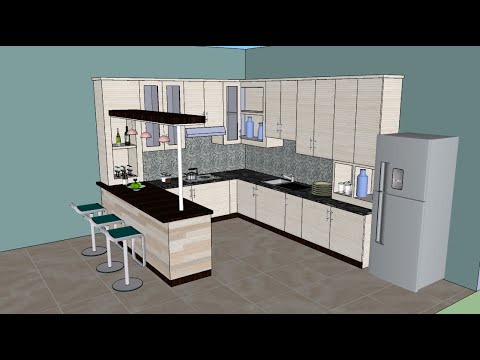
Credit: www.youtube.com
Frequently Asked Questions
Can I Use Sketchup To Design Kitchens?
Yes, you can use SketchUp to design kitchens. It offers 3D modeling features to create detailed layouts. SketchUp’s user-friendly interface and extensive library of kitchen components make it ideal for designing customized kitchen spaces.
Is There An App I Can Use To Design My Kitchen?
Yes, you can use apps like SketchUp, HomeByMe, or IKEA Place to design your kitchen easily. These apps offer user-friendly interfaces and a variety of tools to visualize and customize your kitchen layout efficiently.
What Is The Golden Rule For Kitchen Design?
The golden rule for kitchen design is the “work triangle. ” Position the stove, sink, and refrigerator in a triangle layout. This ensures efficient workflow and minimizes movement. Keep pathways clear and appliances accessible. Prioritize functionality, storage, and lighting to create a practical and inviting kitchen space.
How Do I Design My Kitchen Layout?
Plan the kitchen work triangle for efficiency. Maximize storage with cabinets and shelves. Ensure proper lighting and ventilation. Choose durable, easy-to-clean materials. Consider island or peninsula for extra workspace.
Conclusion
SketchUp makes kitchen design easy and enjoyable. Start with basic shapes. Gradually add details. Experiment with colors and textures. Visualize your ideas clearly. Adjust dimensions as needed. Share your plans with others. Get feedback and improve. Save time and effort with precise tools.
Create stunning designs with simple steps. Practice regularly to enhance skills. Explore advanced features to refine your work. Design your dream kitchen today. Use SketchUp for a creative journey. Enjoy the process. Achieve satisfying results.